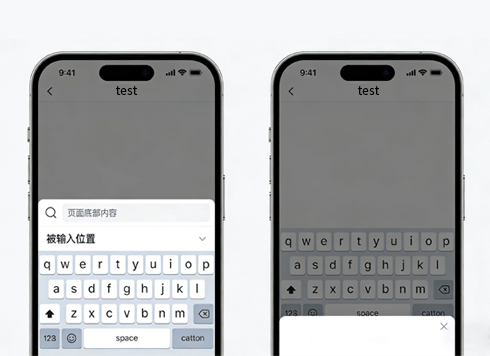





On a small Android phone, when the Flutter login page keyboard pops up, the input field goes under the keyboard—must the whole page be made scrollable?
Most of the time, it is not that the keyboard height is read incorrectly. The real reason is that Scaffold's resizeToAvoidBottomInset is enabled by default and deducts the keyboard-occupied portion from the body's available height. If the page also hard-codes the screen height, or puts the main content in an unscrollable Column, you get the whole page pushed up while the input field is still covered. In 2026, a common troubleshooting order is to first separate three things: who changed the height, whether the page can scroll, and whether bottom spacing has been deducted twice, then decide whether to touch that one property.
When the keyboard pops up, who actually makes the page shorter?
Flutter does not directly change your layout. The keyboard reports the occupied height through MediaQueryData.viewInsets.bottom; Scaffold reads this value and, when resizeToAvoidBottomInset is true (the default), compresses the body. The shrinking itself is normal behavior; the problem is usually that the page was not prepared for it.
Cross-platform differences need to be understood up front: on Android, a common setup is windowSoftInputMode set to adjustResize, so the window itself shrinks; on iOS, the keyboard does not change the window size and only reports an inset. When the same page behaves differently on the two platforms, it is often because the host switched adjustResize to adjustPan, so the page translates as a whole instead of being compressed.
A reusable three checks and one measurement
- Check the host configuration: whether Android has been changed to adjustPan, and whether iOS has a custom container that takes over keyboard notifications.
- Check for hard-coded height: using MediaQuery screen height directly as height easily overflows after shrinking, typically shown as yellow-and-black stripes at the bottom.
- Check whether it can scroll: an unscrollable Column with Expanded or Spacer only squeezes its children when shrinking, and focus will not automatically scroll into the visible area.
- Measure viewInsets: if you have added your own viewInsets.bottom spacing, confirm it is not stacked with automatic shrinking and deducting the height twice.
The fourth step is most often skipped: when the same spacing looks fine on Android but leaves an extra blank strip on iOS, it is usually stacked twice.
How to choose between the two approaches: look at page shape, not preference
The comparison below is organized around common delivery situations in 2026. The effort estimates are experience ranges that vary with the number of fields and overlays, not committed values.
- Option A: keep automatic shrinking and put the main content in a scrollable container. Change surface is small, suitable for forms with many fields that should scroll anyway; experience range is about 0.5–1.5 person-days; cost is that bottom-fixed buttons and persistent bottom bars are pushed above the keyboard, so you must separately decide whether to hide or fix them.
- Option B: turn off automatic shrinking, use AnimatedPadding with viewInsets.bottom, and make room only for the input area. Change surface is concentrated in the middle, suitable for scenarios such as chat, comments, and bottom-fixed input bars where the page does not move and only the input bar moves; experience range is about 0.5–1 person-day; cost is that you must calculate safe areas and landscape yourself, and every new input-related component must be checked again, raising long-term maintenance cost.
One boundary needs to be stated separately: when the page embeds a WebView and input happens in H5, prefer letting the WebView handle its own scrolling and insets rather than deducting again at the Flutter layer; otherwise you get the typical double push, with the input field pushed higher than the keyboard.
Delivery scenario: a rework that only surfaced on small screens
The constraints were a two-week iteration, an already tight budget, and a compatibility list that only said mainstream devices without listing small screens. Our approach was not to schedule keyboard adaptation as a separate item in requirements review, but to write it into our own pre-QA checklist: before handing the build to QA, take one small-screen Android phone plus a third-party Chinese input method, and walk through the login page completely with the candidate bar expanded. As a result, two issues were found on the day of handoff—the bottom submit button was pushed above the keyboard, farther from the finger, and the input field in the overlay had no scrollable container at all. Based on experience ranges, fixing these two issues costs about 1–3 extra person-days; if we waited for testing to raise them, the bottom button, overlay layering, and scroll position would often be reworked together in three places, with the risk of dragging into the day before release.
Several points that recur in similar projects:
- Safe area added twice: an outer SafeArea stacked with manual bottom padding leaves a blank strip at the bottom after the keyboard is dismissed.
- Persistent bottom bars pushed up: bottomNavigationBar and persistentFooterButtons move up with the shrink, so you need to decide case by case whether to hide or fix them.
- Chinese candidate bar is taller: spacing tuned for an English keyboard is still covered when the candidate bar is expanded, so it is better to accept directly in the expanded state.
- Input fields in overlays: Dialog and showModalBottomSheet do not move with the keyboard, so their content needs separate scrolling.
- Landscape and small screens: the keyboard often takes more than half the height, with a typical range of 50%–65%; at this point, first ensure the input field is visible, then discuss visual whitespace.
Applicable and non-applicable boundaries
This troubleshooting applies to scenarios with input inside the page, such as forms, login, search, comments, and chat, especially cross-platform projects where the same code ships to both Android and iOS. It does not apply to full-screen video, games, or pure display pages—these rarely show a keyboard, and forcing adaptation only adds a maintenance point; it also does not apply to desktop layouts mainly driven by keyboard and mouse, whose constraints are different.
A boundary you can quote directly: when input happens in H5 inside an embedded WebView, or when an overlay is taken over by the native shell, the problem is often not in the Flutter layout layer. First confirm on the host side whether the inset has been handled twice, then decide whether to touch page code. On 2026 project timelines, this step of isolating the layer first usually saves most ineffective edits.
FAQ
If I turn off resizeToAvoidBottomInset, will the page stop moving up?
Not necessarily. It only hands the compression responsibility back to you. If the page still has a hard-coded screen height or lacks a scrollable container, the keyboard will still cause overflow when it pops up; the symptom just changes from being compressed to being covered.
Why is the page not compressed on iOS, but the input field is still covered?
The iOS keyboard does not change the window size and only reports viewInsets. When the page itself is not scrollable, it will not automatically make room; you need to add a scrollable container to the main content or manually leave space in the input area.
Is it a bug when the bottom button is pushed up by the keyboard?
No, that is a normal result of automatic shrinking. You need to decide case by case whether to hide it, fix it above the keyboard, or make the whole page scroll; the acceptance criteria for these three approaches are different.
When an input field inside an embedded WebView is covered, should I fix it at the Flutter layer?
Usually do not change it first. First check the H5's own scrolling and how the WebView handles insets; if both layers make room at the same time, you get the double push, and the input field is pushed higher than the keyboard.
Next time the keyboard pushes the page up, first use the three checks and one measurement to confirm whether the issue is automatic shrinking, hard-coded height, or double-deducted inset, then choose between Option A and Option B based on page shape; after the fix, at least run through it on a small-screen phone with the Chinese candidate bar expanded. If the page also has a WebView, native shell, or overlay, isolate the layer before changing code to avoid both sides making room at the same time.
-
In 2026, clicking “Get verification code” in a modal submits the whole form too—is the button’s default type the culprit?
Date: Oct 30, 2026 Read: 4
-
In 2026, AI can ship a homepage fast, but images break and buttons stop responding on target devices—should frontend still own compatibility and performance?
Date: Oct 29, 2026 Read: 24
-
It's 2026—when my performance review asks what separates a frontend experience architect from a regular frontend developer, what evidence actually counts?
Date: Oct 28, 2026 Read: 19
-
It's 2026—why does a campaign page countdown fall behind after a few minutes on the lock screen, and why do users send screenshots asking if we cut their time?
Date: Oct 27, 2026 Read: 21
-
In 2026, why does a Uni-app Android app ask me to log in again after I kill and reopen the process, while the WeChat Mini Program still recognizes me—aren't the caches on both sides the same place?
Date: Oct 26, 2026 Read: 23